When the internet misbehaves, the router gets the blame, and sometimes it deserves it. But a router issue can look exactly like a modem fault, a provider outage, or a problem with one device. This guide helps you work out which one you have, then walks through the fixes in the order that saves the most time.

What are the signs of router failure?
A router rarely dies all at once. Typical warning signs include:
- The internet drops several times a day and comes back only after a restart
- WiFi signal that is weak or disappears in rooms that used to be fine
- Speeds that are far below what you pay for, even right next to the router
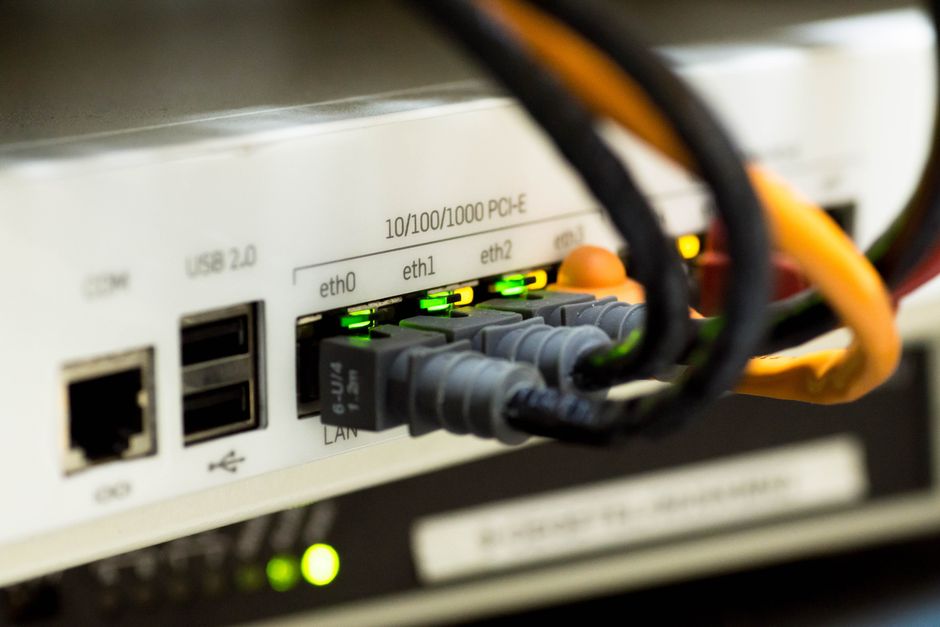
- Indicator lights that stay amber or red, or that blink constantly
- A router that is very hot to the touch, or that restarts by itself
- Devices that connect but can’t load anything
Any one of these can also have an outside cause, so don’t replace anything yet. Diagnose first.
Router, modem, device, or provider? Start here
Your modem brings the internet into the house from your provider. Your router shares that connection with your devices over WiFi and Ethernet. Many homes have both in a single box supplied by the provider. Work through these checks in order:
- Try another device and another website. If one device or one site fails, the router is probably fine.
- Try a wired connection. Connect a laptop to the router with an Ethernet cable. If it works by cable but not over WiFi, the router’s wireless side is at fault. If it fails both ways, look at the modem, the line, or the provider.
- Check your provider’s outage status using your phone’s cellular data.
Step 1: Restart the modem and router properly
Unplug both from power, wait 30 seconds, plug the modem in first, wait until its lights settle, and then plug in the router. A proper power cycle clears memory glitches and stuck connections, and it fixes a surprising share of router problems.
Step 2: Read the lights
Indicator lights differ by brand, so check your router’s manual or the provider’s support page for the exact meanings. As a rule of thumb:
- Power light off: no power. Check the adapter and the outlet.
- Internet or WAN light off, amber, or red: the router can’t reach your provider. This points to the modem, the cable, or an outage.
- WiFi light off: the wireless radio is disabled. Check the router’s settings or a physical WiFi button.
- All lights normal but no internet: suspect DNS, a device setting, or a provider-side problem.
Step 3: Check cables and connections
Make sure the cable from the wall (coax, fiber, or phone line) is tight at both ends, and that the Ethernet cable between modem and router is clicked in. Damaged cables, bent connectors, and loose splitters cause slowdowns and random drops. If you have a spare Ethernet cable, swap it in as a test.
Step 4: Fix slow speeds
Run a speed test (such as Speedtest or fast.com) next to the router, ideally over a cable. Then compare it with the plan you pay for.
- Slow even by cable: the problem is the provider, the modem, or the line. Contact your provider.
- Fast by cable, slow over WiFi: the problem is signal quality. Move closer, and try the 5 GHz band for speed or the 2.4 GHz band for range.
- Too many devices: streaming boxes, cameras, smart speakers, and phones all compete. An older router struggles with a modern house full of devices.
- Interference: in apartments and tight neighborhoods, many networks crowd the same channels. Changing the channel in the router settings, or using auto channel selection, can help.
Step 5: Improve the router’s location
Place the router high, in the open, and near the middle of the home. Avoid putting it inside a cabinet, behind a TV, or next to a microwave or cordless phone base. Thick walls, mirrors, and large metal objects weaken the signal. In a long or two-story home, a single router often can’t cover every corner, and a mesh system is the better answer for dead spots.
Step 6: Don’t let it overheat
Routers that run hot become unstable and fail early. In Florida, this matters: a router in a garage, a lanai closet, an attic, or a poorly ventilated media cabinet can run far hotter than it was designed for. Give it airflow, keep it out of direct sun, and don’t stack other equipment on top of it.
Step 7: Update the firmware
Firmware is the router’s built-in software. Updates fix bugs and security holes, and they often resolve random disconnects. Many routers update automatically or through an app; others require you to sign in to the admin page (the address and password are usually printed on the router’s label). Routers that no longer receive updates are a security risk and a reason to consider replacement.
Step 8: Fix a router that keeps disconnecting
- Restart it and check for overheating.
- Update the firmware.
- Move other wireless sources (cordless phones, baby monitors) away from it.
- Check whether the problem happens on every device or one. If it is only one device, update or reset that device’s network settings instead.
- Call your provider. Intermittent drops can come from a weak signal on the line, which only they can test.
Step 9: Factory reset as a last resort
Most routers have a small reset button, usually recessed, that you hold for around ten seconds with a paperclip. A factory reset erases every setting, including your WiFi name and password, and returns the router to its defaults, so you will have to set it up again. If the router came from your provider, you may need their help to reconnect it to the service. Try the earlier steps first.
When should you replace your router?
Consider a new router if it is five or more years old, no longer gets firmware updates, runs hot or reboots on its own, or can’t keep up with the number of devices in your home. Newer WiFi standards handle many devices at once far better than older ones. If your issue is weak signal in some rooms rather than a failing router, a mesh WiFi system may be the better purchase than a faster single router.
Secure your router while you are in there
- Change the default admin password.
- Use WPA2 or WPA3 security for the WiFi, with a strong passphrase.
- Turn off remote administration unless you need it.
- Check the connected-devices list for anything you don’t recognize.
Frequently asked questions
What lights should be on my router?
At minimum: power, the connection to your provider (often labeled Internet, WAN, or a globe), and WiFi. Meanings and colors vary by brand, so check the manual.
Is it my router or my internet provider?
If the internet fails over an Ethernet cable and the modem’s lights show no connection, it is most likely the provider or the line. If a cable works and only WiFi fails, it is the router.
How long should a router last?
Many last several years, but age, heat, and outdated software make routers unreliable around the five-year mark.
Does restarting the router really help?
Yes, for many temporary glitches. If you have to restart it daily, though, something else is wrong, such as overheating, outdated firmware, or a failing unit.
If you have worked through this list and still have router problems, contact ZoeSquad TechSavvy. We help Naples-area homes and small offices with router setup, WiFi coverage, and home networks. See our services or our guide to IT support in Naples.